
You have five podcast segments, twelve interview clips, or an album ripped as separate tracks, and you need them in one audio file. Merging audio files is a common task, but online merge tools make you upload every file, wait in a queue, and hope the output does not glitch at the seams.
This guide shows how to merge audio files on your desktop with Pimosa, combine MP3, WAV, and FLAC offline on Mac and Windows.
When to merge audio files
Common reasons to combine audio tracks:
- Podcast assembly, Stitch intro, interview, and outro into one episode file.
- Audiobook chapters, Merge chapter MP3s into a single long file for listening.
- DJ mixes and sets, Combine tracks for sharing (note: crossfades may need a DAW).
- Playlist exports, Create one file from a ordered list of songs.
- Voiceover projects, Merge narration takes into a single timeline export.
Merging is different from mixing (playing two tracks simultaneously). Merging places files end to end in sequence.
Merge audio files: desktop vs online
| Desktop (Pimosa) | Online merger |
|---|---|
| No upload limits | Per-file and total size caps |
| Batch merge many files | Slow for large libraries |
| Works offline | Requires internet |
| Files stay private | Uploaded to third-party servers |
For podcasters and creators working with hundreds of megabytes of audio, desktop merging is the practical choice.
Supported formats
Pimosa's Audio Merger supports common formats including:
- MP3, Most common for podcasts and music
- WAV, Uncompressed, lossless
- FLAC, Lossless compression
- M4A/AAC, Apple and streaming formats
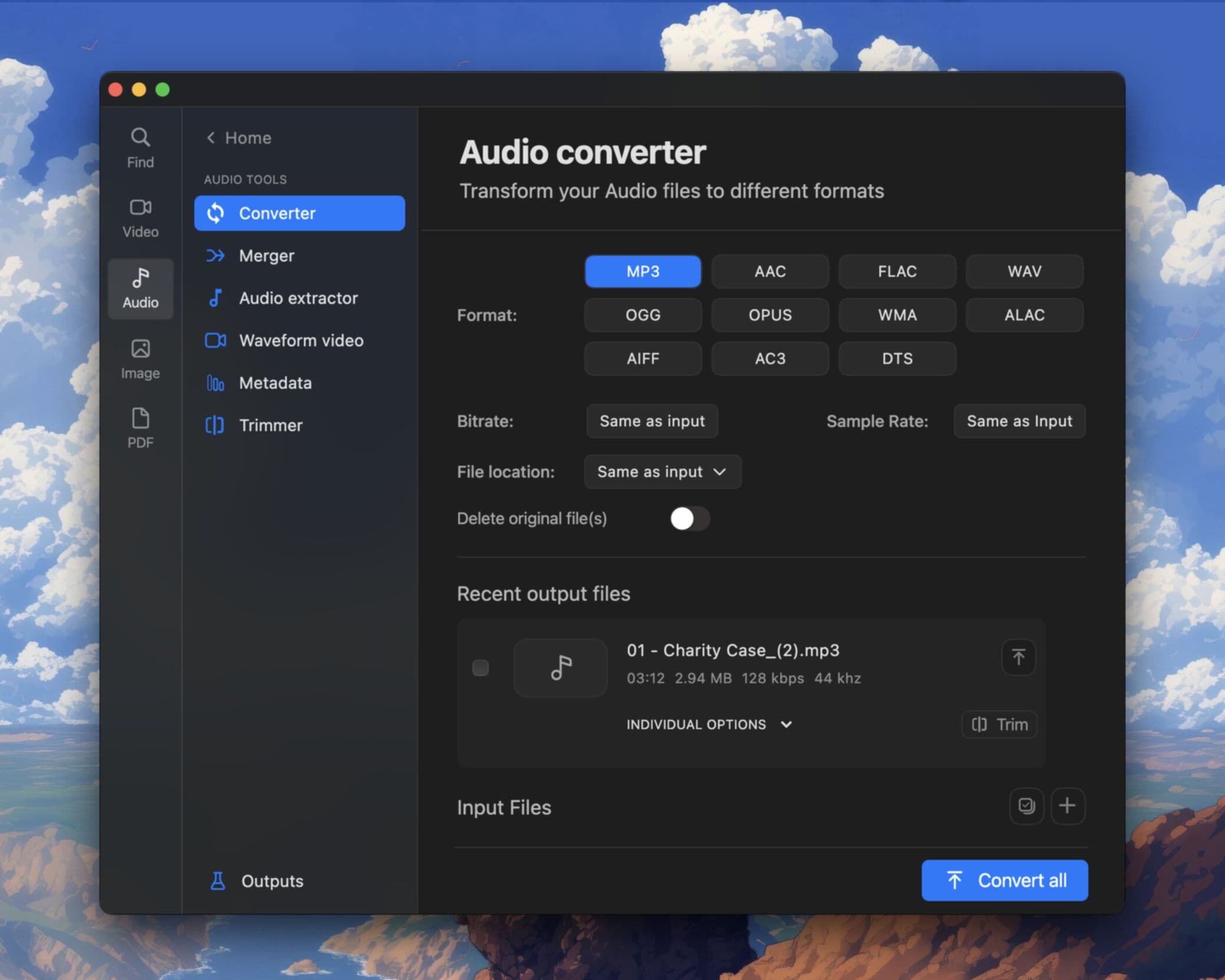
For best results, merge files with the same sample rate and format. If your files differ (e.g., one WAV and one MP3), Pimosa handles conversion during the merge, or you can pre-convert with the Audio Converter for more control.
Step-by-step: merge audio in Pimosa
1. Open Audio Merger
Launch Pimosa and select Audio Merger from the tool list.
2. Add files in order
Drag your audio files into the merge queue. Order matters, the first file plays first, the second follows, and so on. Drag to reorder if needed.
3. Review the queue
Check the list: correct files, correct order, no duplicates. For podcast assembly, this is where you confirm intro → content → outro sequencing.
4. Choose output format
Select your output format (MP3 for sharing, WAV for editing, FLAC for archival). Set bitrate if exporting to a compressed format.
5. Merge and export
Click merge. Pimosa concatenates the files and writes a single output file to your chosen folder.
Tips for clean merges
Match sample rates. Merging 44.1 kHz and 48 kHz files works but may involve resampling. Normalize sample rates beforehand if you hear artifacts.
Check levels. If one clip is much louder than another, normalize or adjust volume before merging (or use a DAW for fine control).
Add brief silence between segments. Some mergers support gap insertion. If not, add a half-second silence file between clips for breathing room.
Keep originals. Merging is non-destructive to source files, but always keep backups of raw recordings.
Use cases in detail
Podcast episodes
Record segments separately (intro recorded later, interview from Zoom, outro with music). Merge into one MP3 for upload to your podcast host.
Album playlists
Merge ripped tracks into one long file for a road-trip playlist on a device that prefers single files. Tag the output with the Audio Metadata Editor after merging.
Lecture recordings
Combine Part 1, Part 2, and Q&A into one file for students.
FAQ
Can I merge MP3 and WAV files together?
Yes. Pimosa can merge different formats, converting as needed during the merge. For maximum control, convert all files to the same format first.
Is merging lossless for WAV and FLAC?
Merging lossless formats without re-encoding is lossless. Exporting to MP3 applies compression.
How many files can I merge at once?
Online tools often limit you to 5–10 files. Pimosa runs locally, practical limits are disk space and RAM, not arbitrary website caps.
Does merging work on Mac and Windows?
Yes. Download Pimosa for your platform and use the same workflow.
Combine your audio files without uploading to the internet. Download Pimosa and try the Audio Merger free for 3 days.
Related Pimosa tools
- Audio Merger
Combine multiple tracks into one polished file.
- Audio Converter
Convert MP3, WAV, FLAC, and more with custom bitrate.

Pimosa is your all-in-one desktop toolkit for Mac and Windows with a clean interface and drag-and-drop simplicity, and your files never leave your device.
- No upload limits. Process large files locally
- Works fully offline after install
- multiple tools for video, photo, audio, and PDF files
- Batch processing on Mac and Windows
- User-friendly interface with drag-and-drop simplicity
- Also on iPhone: essential video and image tools to save storage