
You recorded a screen capture, exported a project, or downloaded a clip, and now the file is too big to send. Email bounces it back. Discord says "file too large." Slack refuses the upload. The video is fine; the file size is the problem.
This guide covers common video file size limits and how to compress videos offline on Mac and Windows with Pimosa, without uploading your file to a random compressor website.
Common video file size limits
Different platforms enforce different caps:
| Platform | Typical limit |
|---|---|
| Gmail | 25 MB attachment |
| Outlook | 20–34 MB (varies by plan) |
| Discord (free) | 8 MB for uploads, 25 MB with Nitro for some contexts |
| Discord Nitro | 50–500 MB depending on context |
| Slack (free) | 1 GB per file (but large files are slow) |
| 16 MB (video), 64 MB (document) | |
| iMessage | 100 MB (varies) |
If your video exceeds the limit, you have three options: compress it, trim it, or use a file-sharing link. Compression is usually the fastest fix when you need to attach the file directly.
Why videos get so large
Video file size depends on resolution, frame rate, duration, and codec:
- Resolution, 4K video is 4× the pixels of 1080p.
- Duration, A 10-minute clip is 10× a 1-minute clip at the same settings.
- Bitrate, Screen recordings and exports from editing software often use high bitrates "just in case."
- Codec, Uncompressed or ProRes exports are enormous. H.264/H.265 compress much better.
A 2-minute 1080p screen recording can easily be 200–500 MB. Email and Discord were not designed for that.
Compress video offline without uploading
Online video compressors require you to upload the entire file, wait, and download the result. For a 500 MB video, that is slow, risky (privacy), and often hits upload caps before you even start.
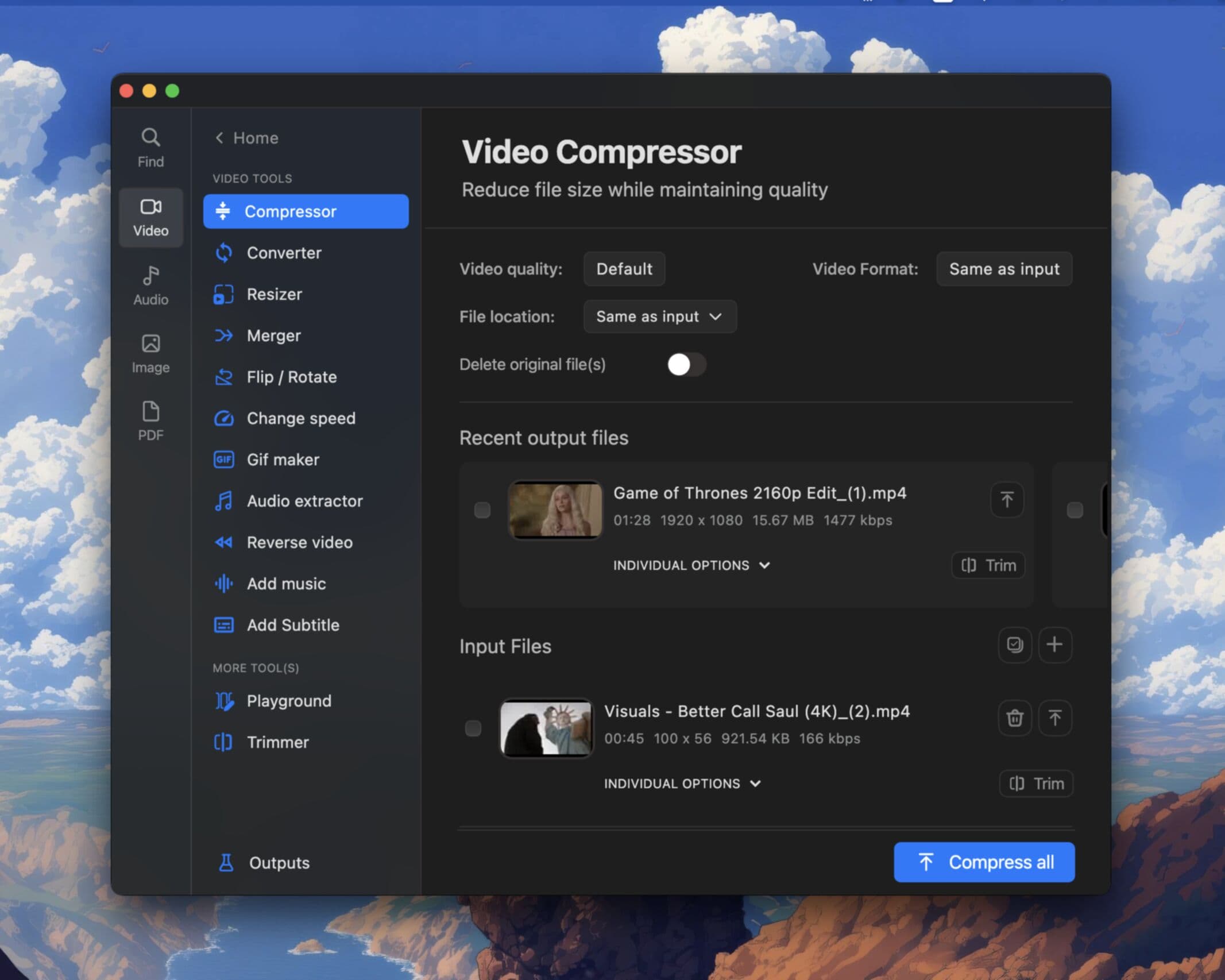
Pimosa's Video Compressor runs on your Mac or Windows computer. The file stays local. Processing speed depends on your hardware, not your upload bandwidth.
Step 1: Install Pimosa
Download Pimosa for your platform. The free 3-day trial includes video compression.
Step 2: Open Video Compressor
Select Video Compressor from the tool list.
Step 3: Add your video
Drag your MP4, MOV, AVI, or other supported video into the input area. Large files are fine, there is no website upload limit.
Step 4: Choose compression settings
Target your platform's limit:
- For email (25 MB), Reduce resolution to 720p, lower bitrate, or trim length.
- For Discord free (8 MB), Aggressive compression at 480p or lower, shorter clip, or convert to a more efficient codec.
- For Discord Nitro (50 MB), Moderate compression at 720p usually works for short clips.
Preview the estimated output size before exporting.
Step 5: Export and share
Save the compressed file and attach it to your email or upload to Discord. If still too large, trim unnecessary sections first or compress again with lower settings.
Choosing the right compression settings
| Goal | Suggested approach |
|---|---|
| Under 25 MB (email) | 720p, medium bitrate, H.264 |
| Under 8 MB (Discord free) | 480p, lower bitrate, trim if needed |
| Under 50 MB (Nitro) | 720p–1080p, medium bitrate |
| Keep quality high | Compress minimally; trim instead |
Trim before compressing. If only 30 seconds of a 5-minute video matter, trim first with the Video Trimmer, smaller input means smaller output with less quality loss.
Convert codec if needed. Some exports use inefficient codecs. The Video Converter can re-encode to H.264/H.265 for better compression efficiency.
When compression is not enough
Sometimes the video is simply too long for the target limit:
- Trim to the essential segment.
- Lower resolution, 480p is often fine for screen recordings shared in chat.
- Split into multiple parts if the full video must be shared.
- Use a link, Google Drive, Dropbox, or WeTransfer for files that cannot be compressed small enough.
FAQ
How do I compress a video for Discord's 8 MB limit?
Reduce resolution to 480p or lower, shorten the clip, and use H.264 with a lower bitrate. Pimosa's Video Compressor lets you preview output size before exporting.
Will compressing video reduce quality?
Some quality loss is inevitable with lossy compression, but moderate settings for chat and email are usually invisible on phone-sized screens. Trim unnecessary footage first to preserve quality on the parts that matter.
Can I compress video without uploading?
Yes. Pimosa compresses video locally on your desktop. Your file never leaves your computer.
What formats does Pimosa compress?
MP4, MOV, and other common video formats. Check supported formats in the app or docs.
Stop fighting file size limits. Download Pimosa and compress videos offline, free 3-day trial, no browser upload.
Related Pimosa tools
- Video Compressor
Shrink videos for Discord, email, and YouTube.
- Video Converter
Convert between MP4, MKV, MOV, AVI, and more.

Pimosa is your all-in-one desktop toolkit for Mac and Windows with a clean interface and drag-and-drop simplicity, and your files never leave your device.
- No upload limits. Process large files locally
- Works fully offline after install
- multiple tools for video, photo, audio, and PDF files
- Batch processing on Mac and Windows
- User-friendly interface with drag-and-drop simplicity
- Also on iPhone: essential video and image tools to save storage