
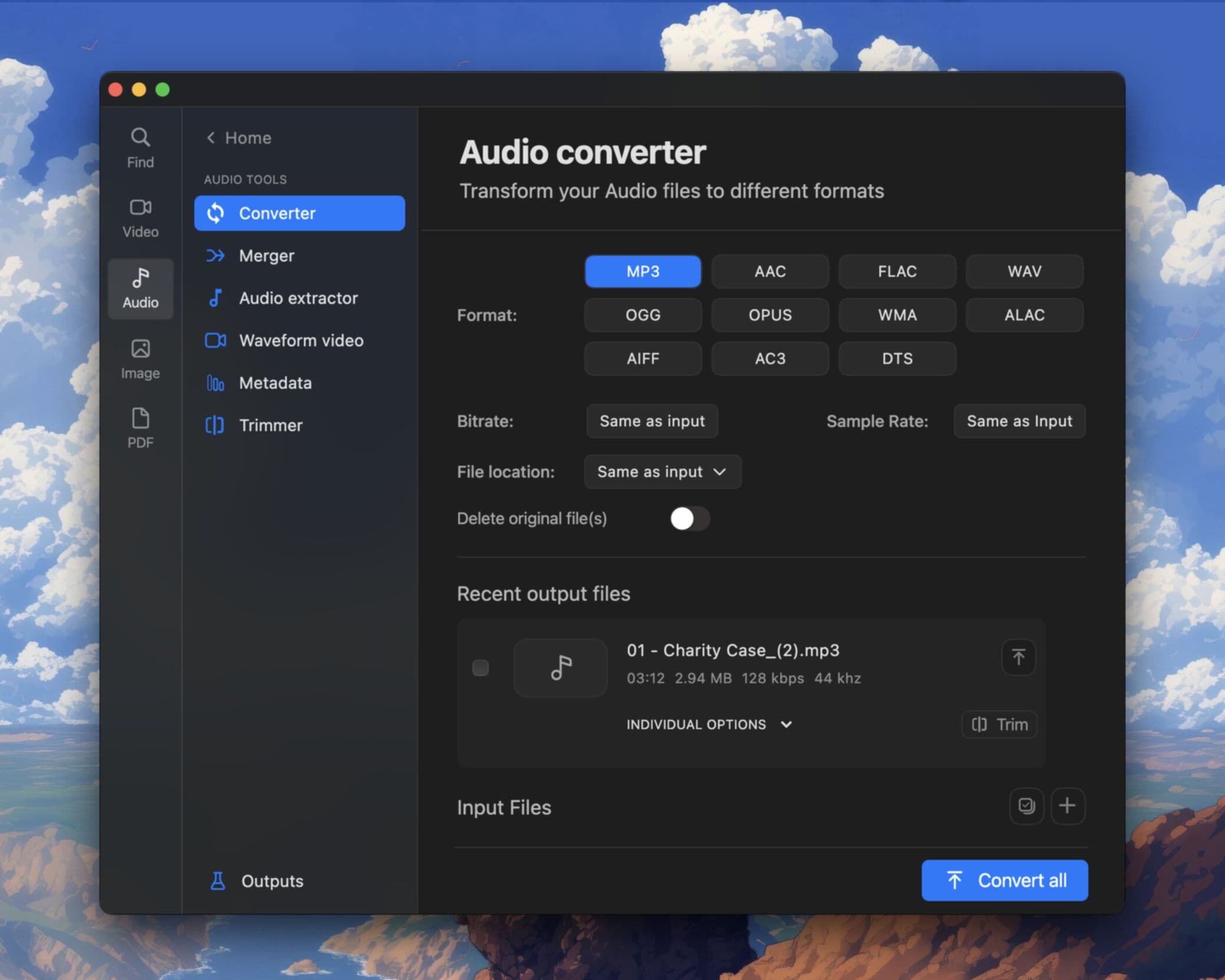
Your music library is a mess. Tracks show up as "Track 01" with no artist name. Album art is missing or wrong. A podcast you downloaded has the uploader's name instead of the show title. Fixing this means editing audio metadata, the tags embedded in MP3, FLAC, M4A, and other audio files.
Online tag editors exist, but uploading your music collection to a stranger's server is a bad idea. This guide shows how to edit song metadata on your desktop with Pimosa, offline, in batch, on Mac and Windows.
What is audio metadata?
Audio metadata (also called ID3 tags for MP3, or Vorbis comments for FLAC) is text and images stored inside the audio file itself. Common fields include:
- Title, Song or track name
- Artist, Performer or band
- Album, Album name
- Album artist, Useful for compilations
- Track number, Position on the album
- Year, Release year
- Genre, Rock, jazz, podcast, etc.
- Album art, Cover image embedded in the file
When you edit song metadata, you are changing what music players, phone sync tools, and car stereos display, not the audio itself.
Why edit metadata on desktop (not in-browser)
| Desktop (Pimosa) | Online tag editor |
|---|---|
| Files stay on your computer | Must upload each file |
| Batch edit hundreds of tracks | Usually one at a time |
| Works offline | Requires internet |
| No file size limits | Upload caps |
If you have a large library, ripped CDs, downloaded FLAC albums, podcast archives, desktop editing is the only practical option.
Step-by-step: edit song metadata in Pimosa
1. Open the Audio Metadata Editor
Launch Pimosa and select Audio Metadata Editor from the tool list. This is Pimosa's dedicated music metadata editor.
2. Add your audio files
Drag and drop MP3, FLAC, M4A, WAV, or other supported files into the workspace. You can add a single track or an entire folder for batch editing.
3. Edit tag fields
Select a file and update the fields you need:
- Fix the title and artist on mislabeled tracks
- Set the correct album name for a group of songs
- Add or replace album art, paste an image or browse for a cover file
- Set track numbers so albums sort correctly
Changes preview in the editor before you save.
4. Batch edit multiple files
For an entire album with wrong tags, select all tracks and edit shared fields (album name, artist, year, album art) in one pass. Then adjust individual track titles and numbers.
5. Save tags to files
Click save to write metadata back into the audio files. Pimosa updates the tags in-place, the audio data is not re-encoded, so there is no quality loss.
Common use cases
Ripped CDs without good tag data. Ripping software sometimes pulls wrong info from online databases. Fix artist, album, and art manually.
Podcast files with bad names. Downloads often use episode filenames instead of proper titles. Set title, show name, and cover art.
Compilation albums. Set "Album artist" to "Various Artists" and give each track its correct performer in the Artist field.
DJ sets and mixes. Add custom titles, genre tags, and artwork for personal organization.
Converting formats. If you need to change file format after tagging, use the Audio Converter tool in the same app, convert MP3 to FLAC or WAV without leaving Pimosa.
Album art tips
- Use square images (500×500 or 1000×1000 pixels) for best compatibility.
- JPEG and PNG both work; keep file size under 1 MB for the embedded image.
- If art shows in Pimosa but not in another player, that player may cache old tags, restart it or re-import the file.
FAQ
Does editing metadata change audio quality?
No. Metadata is separate from the audio stream. Tag edits do not re-encode the music.
Can I edit FLAC metadata the same as MP3?
Yes. Pimosa supports common tag formats across MP3, FLAC, M4A, and more. The field names are the same even if the underlying tag format differs.
Can I edit metadata on Mac and Windows?
Yes. Pimosa runs on both platforms with the same workflow. Download the version for your OS.
How do I edit metadata for many files at once?
Add a folder, select all tracks, and edit shared fields (album, artist, year, art) in batch. Then fix individual track titles as needed.
Clean up your music library without uploading files to the internet. Download Pimosa and try the Audio Metadata Editor free for 3 days.
Related Pimosa tools
- Audio Metadata Editor
Edit song info, album art, and tags for MP3, FLAC, and more.
- Audio Converter
Convert MP3, WAV, FLAC, and more with custom bitrate.
Pimosa is your all-in-one desktop toolkit for Mac and Windows with a clean interface and drag-and-drop simplicity, and your files never leave your device.
- No upload limits. Process large files locally
- Works fully offline after install
- multiple tools for video, photo, audio, and PDF files
- Batch processing on Mac and Windows
- User-friendly interface with drag-and-drop simplicity
- Also on iPhone: essential video and image tools to save storage